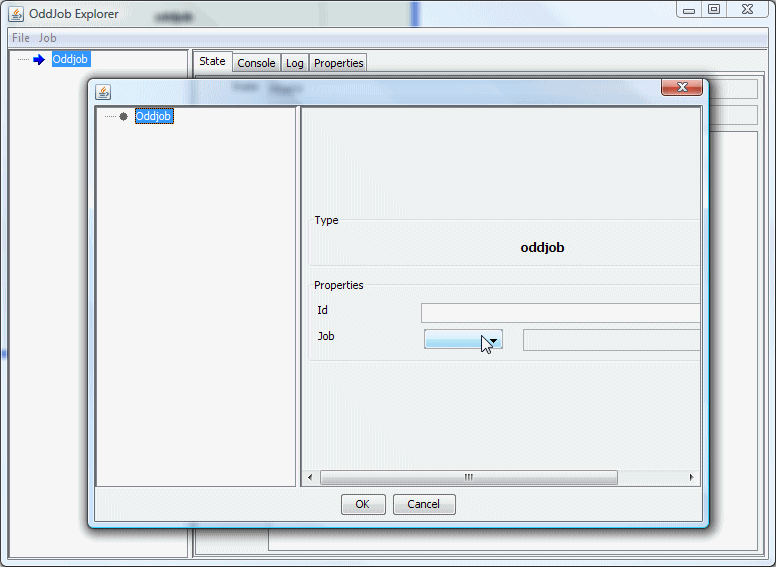
Creating your first job and scheduling it.
So you've downloaded and installed Oddjob. You've started Oddjob Explorer and run through the examples. Now you want Oddjob to do something useful for you.
In the first instance we'll assume this useful thing is in the form of running a batch file and that you would like this useful thing done at regular intervals.
To get Oddjob to do anything, it needs a configuration file which contains the 'jobs' that Oddjob will run. To create our first configuration file we will use Oddjob Designer. From the file menu of Oddjob Explorer choose Oddjob Designer. A blank looking Oddjob Designer window will appear. From the file menu of Oddjob Designer select new.
To create a job for Oddjob to run select the only node of our so far empty job tree named Oddjob. A new Design menu will appear. Navigate from this menu via Set Job to grouping to sequential.
Why sequential? Because Oddjob can only run one job! So unless you want Oddjob to only do one thing, that one job had better be a job that can run more than one job itself. In this instance we've chosen 'sequential' because we want our jobs to run one after the other. There are other ways to group jobs but more on that later.
Now we can create our scheduler job.
OK so now you're slightly confused because you have to create this scheduler job and you thought Oddjob was a scheduler. No sorry, Oddjob isn't a scheduler but it can run a scheduler, and comes with a scheduler, but it's not there by default. That way if you want to use oddjob for things other than scheduling, or you want your scheduler and your job on separate machines you can. Having a scheduler as just another job adds to Oddjobs great flexability.
Create the scheduler by selecting the newly created node 'Run in Sequence' and then follow the menus Design to Add Job to scheduling to scheduler. The node 'A Scheduler' should appear.
We now have a scheduler and can ignore all the configuration options on the right because the default scheduler is good enough. Now we need to add the job that the scheduler will schedule but before doing that lets understand what will happen when runs the jobs in our configuration.
Oddjob will run the 'sequential' job. The 'sequential' job will run the 'scheduler'. The 'scheduler' starts and run in the background, so the sequential job runs the next job. We don't want our job to be the next job in the chain because we don't want it run straight away, we want it run at some time in the future. To allow us to do this we are going to put our job in a 'folder'.
Select the node 'Run in Sequence' again and navigate the menus Design to Add Job to grouping to folder. The node 'A Folder' should appear. Select this new node and navigate the menus Design to Add Job to exec. This is the job that will run our batch file.
Now to specify the command to run. For this example we're going to borrow the batch file from the examples. Click on the 'Command' field and enter.
cmd /C examples\exec\bin\greeting.bat hello
Obviously this is command is only for Windows users but you users on other platforms are bright enough to realize this and substitute an equivalent command.
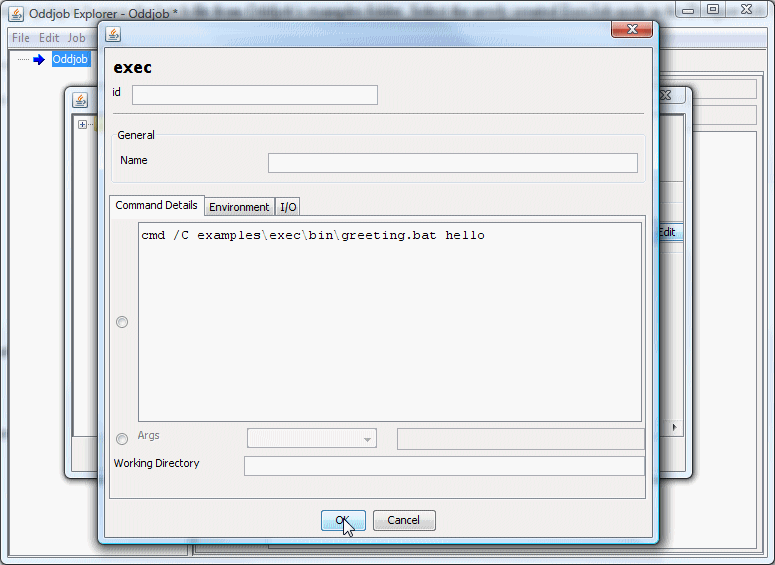
And that's it - We're done. Now save the configuration file (from the file menu) and go back to Oddjob Explorer and open the file (from the file menu).
Expand the tree and select the 'Execute a Command' node, then from the job menu select Schedule Job then A Scheduler then ojschedule.
A 'Schedule Details' dialog will appear. In the 'Schedule Id' field enter 'my-sched'. The 'Schedule Name' is optional but enter something like 'My Schedule'. Then next to the 'Schedule field', click the 'Edit' button.
Another tree like dialog will appear. We are now defining our schedule. We will define a schedule that will execute our job every 30 seconds. Select the 'Schedule' node and right click to get the available schedules menu. Select Interval and then select the newly created Interval node. Enter the value '00:00:30' in the 'Interval' field. We have created a schedule which will run every 0 hours, 0 minutes and 30 seconds. Click 'OK' to close the 'Schedule' dialog and then OK again to close the 'Schedule Details' dialog and submit the schedule.
If everything worked OK the 'A Scheduler' node should change to indicate that it has children. Expand the node and you will your newly created schedule. It will already have run. Select the 'Properties' tab to view when it will run again.
If the schedule failed to submit an error dialog would have appeared hopefully giving an indication of what you missed, so you can go back and fix it. Remember when switching between Designer and Explorer to save you Designer Configuration and either open it again in Explorer or use the File -> Reload menu option.
Finally we can see the results of our scheduled command by selecting the 'Execute a Command' node in Oddjob Explorer and selecting the 'Console' tab in the right hand detail panel.
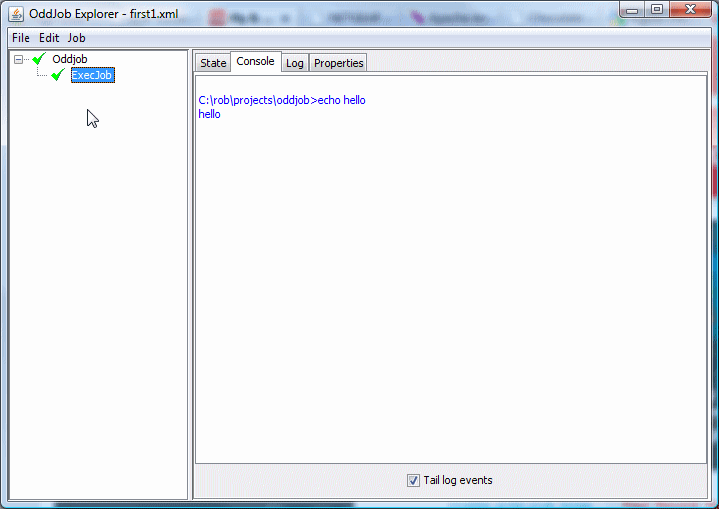
Congratulations - you've scheduled your first job in Oddjob. Unfortunately our scheduling has a few limitations.
Fortunately Oddjob has answers to both these problems.